 AI Agent — automate conversations and workflows. Now available on Free plan


How to Run Android Chat and WebRTC Video Calling Samples

To run Android chat and WebRTC video calling samples with QuickBlox, create a QuickBlox application, download or clone the Android SDK samples from GitHub, add your application credentials, and run the selected sample in Android Studio. The samples let you test real-time chat and video calling before integrating these features into your own Android application.
This tutorial walks you through each step, from setting up your QuickBlox application and downloading the sample code to configuring your credentials and launching a working sample.
New to real-time video calling? Before running the samples, you may find it helpful to read What Is a Video SDK? to understand how Video SDKs enable real-time audio and video communication in applications.
Prerequisites
Before you begin, you’ll need:
- A QuickBlox account
- Android Studio
- Git, if you plan to clone the repository
- An Android device or emulator
- A Firebase project if you want to use push notifications
Time: ~30 minutes
Create a QuickBlox Application
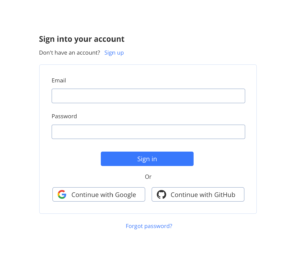
First, sign in to the QuickBlox Dashboard. If you don’t already have an account, sign-up to create one before continuing.
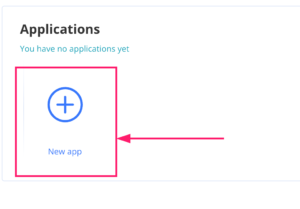
After signing in to the admin panel, create a new application by selecting New app.
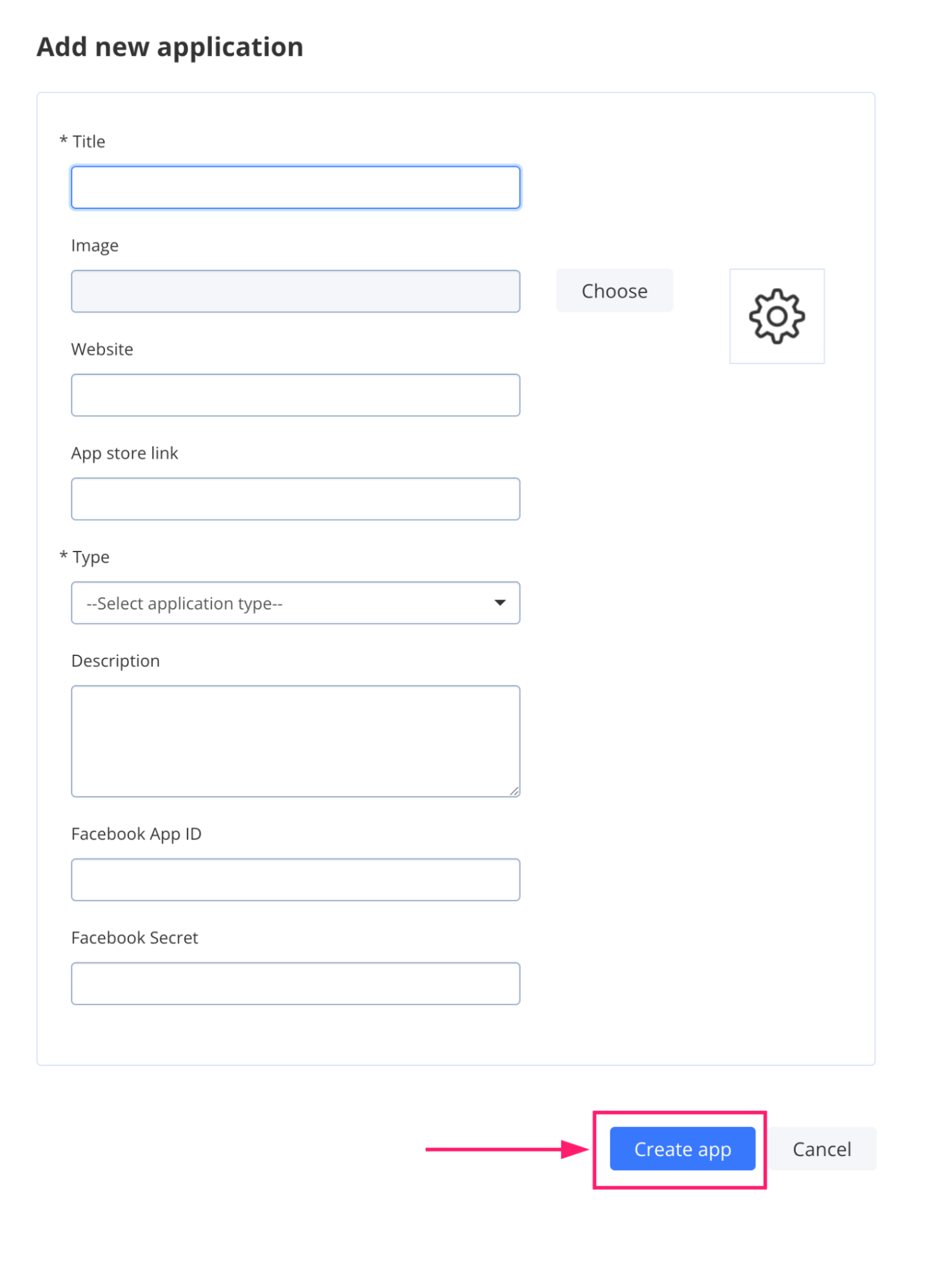
Enter the required information about your application or organization in the corresponding fields, then select Create app.
Your QuickBlox application provides the credentials you’ll need later when configuring the Android sample.
Download the QuickBlox Android SDK Samples
Next, download the Android samples from the QuickBlox Android SDK repository on GitHub.
From the repository, select Code and choose how you want to download the samples.
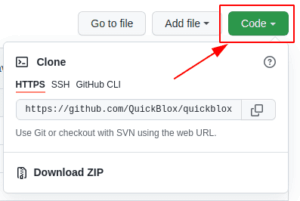
You can either:
- Clone the repository using HTTPS, or
- Download the repository as a ZIP file.
Clone the Repository in Android Studio
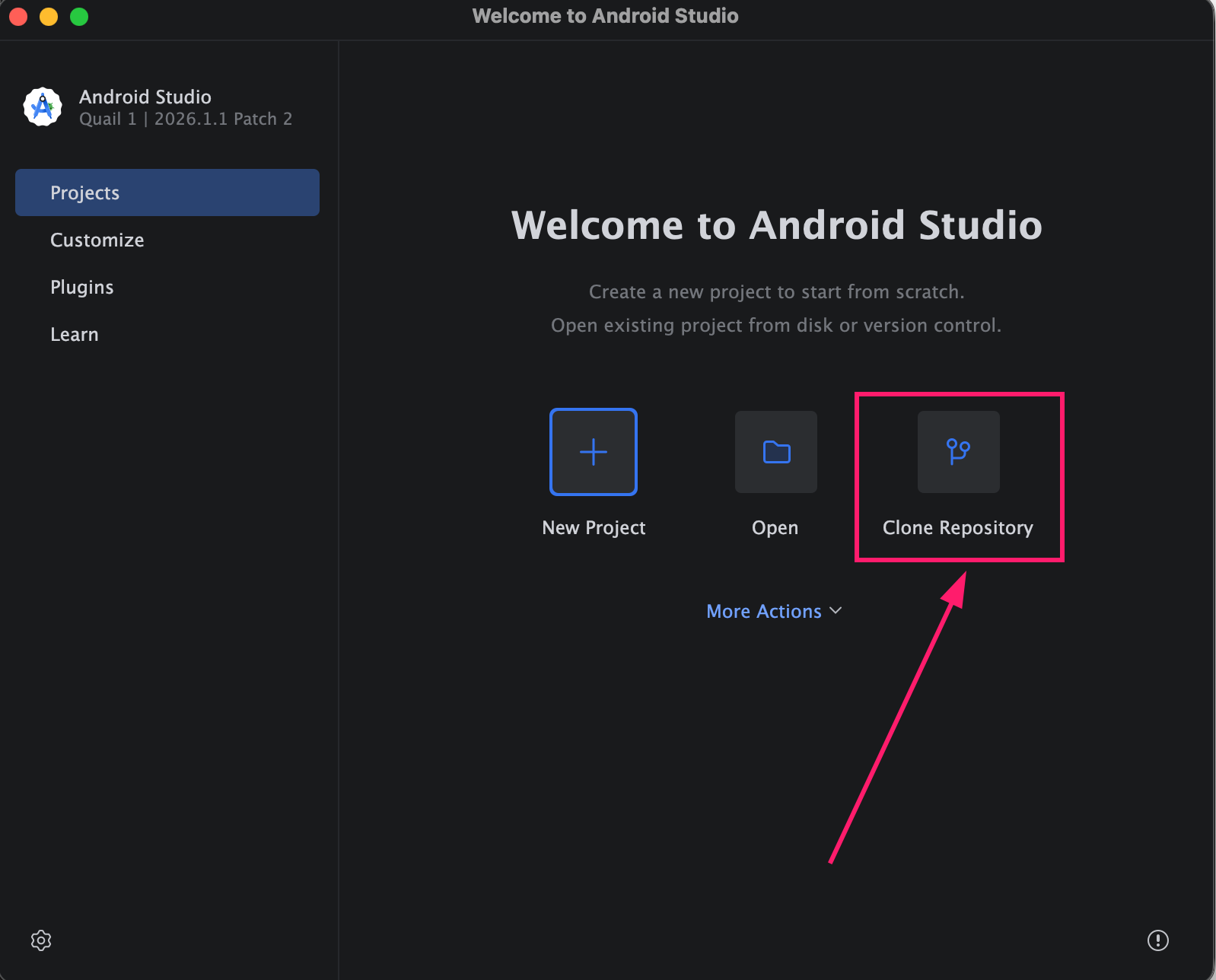
Open Android Studio. We recommend using a current version compatible with the QuickBlox Android SDK and samples.
Select Clone Repository.
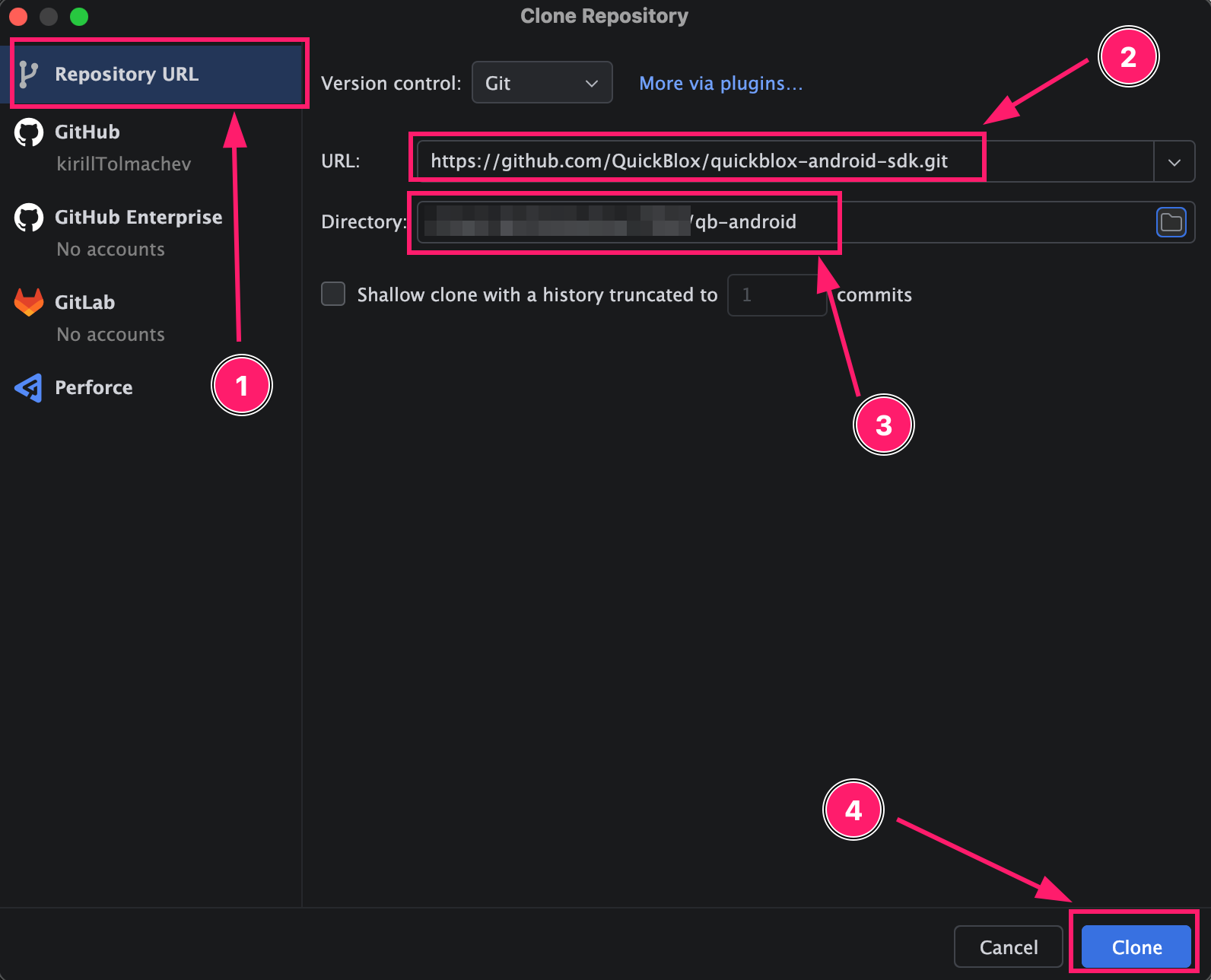
Select the Repository URL option and paste the HTTPS URL for the QuickBlox Android SDK repository into the URL field.
Choose the directory where you want to save the samples, then select Clone.
Open an Android Sample in Android Studio
Once the repository has been cloned or downloaded, open the sample you want to run in Android Studio.
Select Open.
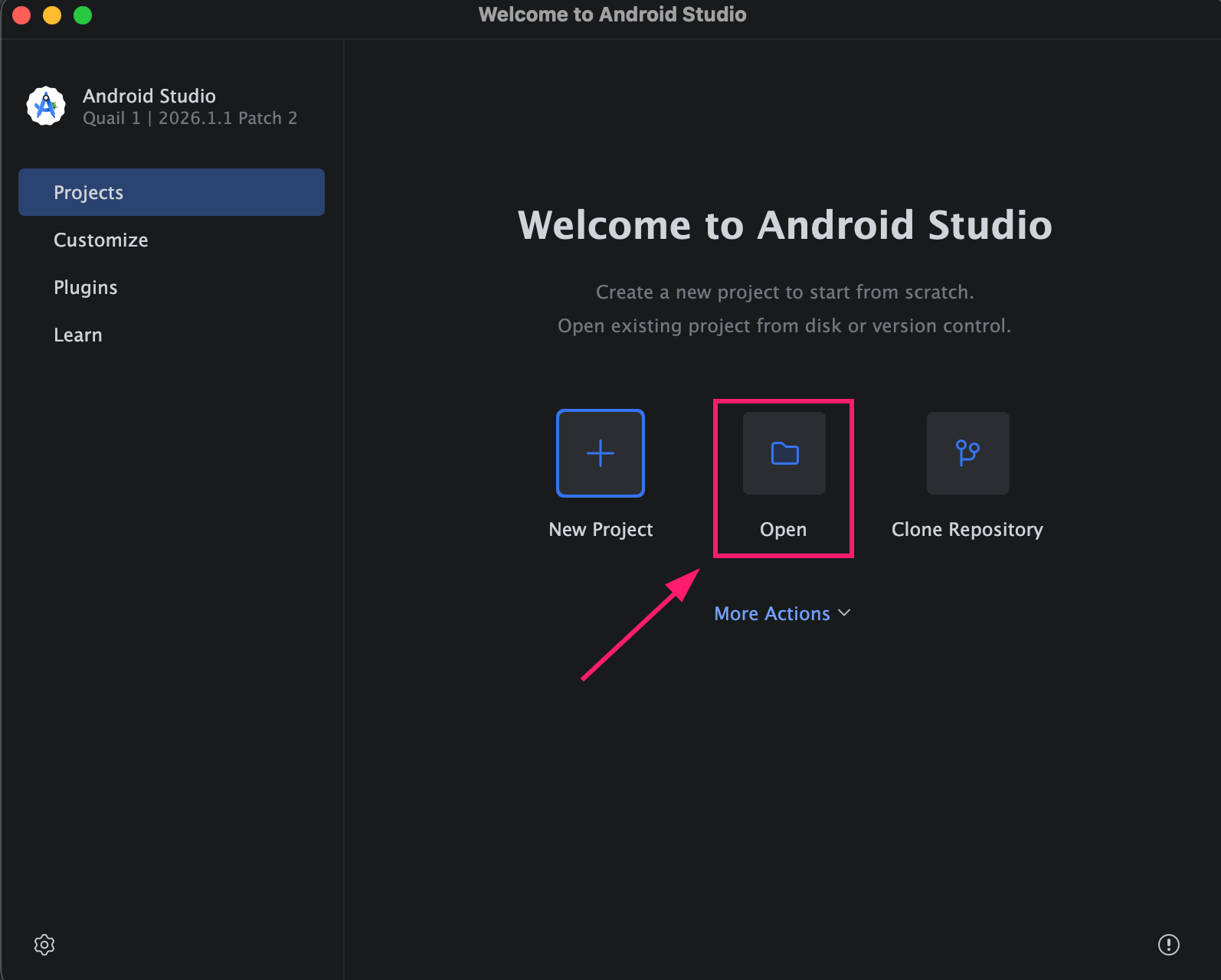
Navigate to the downloaded repository and select the required sample.
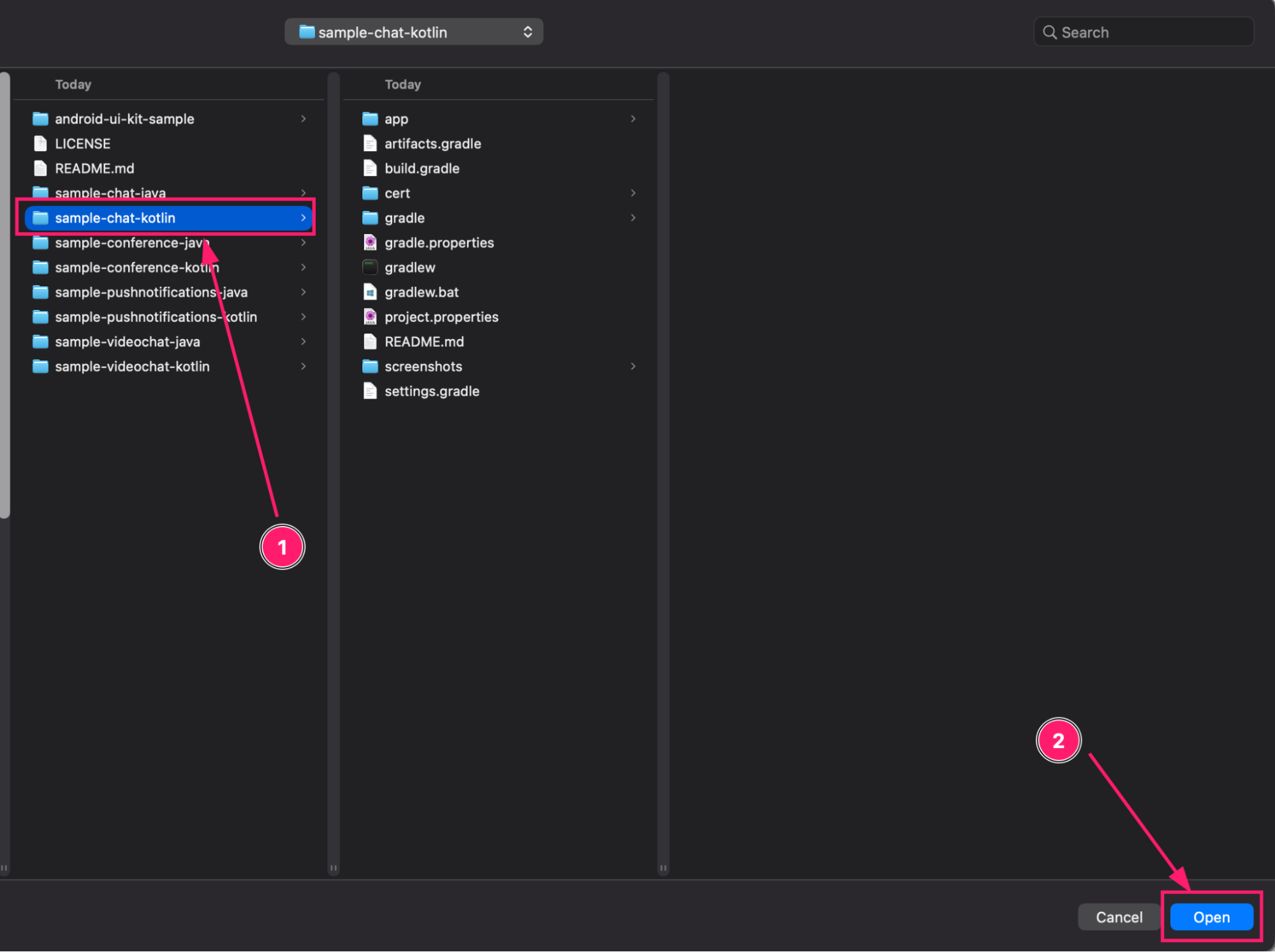
Allow Android Studio to load and synchronize the project before continuing.
Add Your QuickBlox Application Credentials
Before you can run the sample, add the application credentials from your QuickBlox Admin Panel to the appropriate configuration file in the sample application.
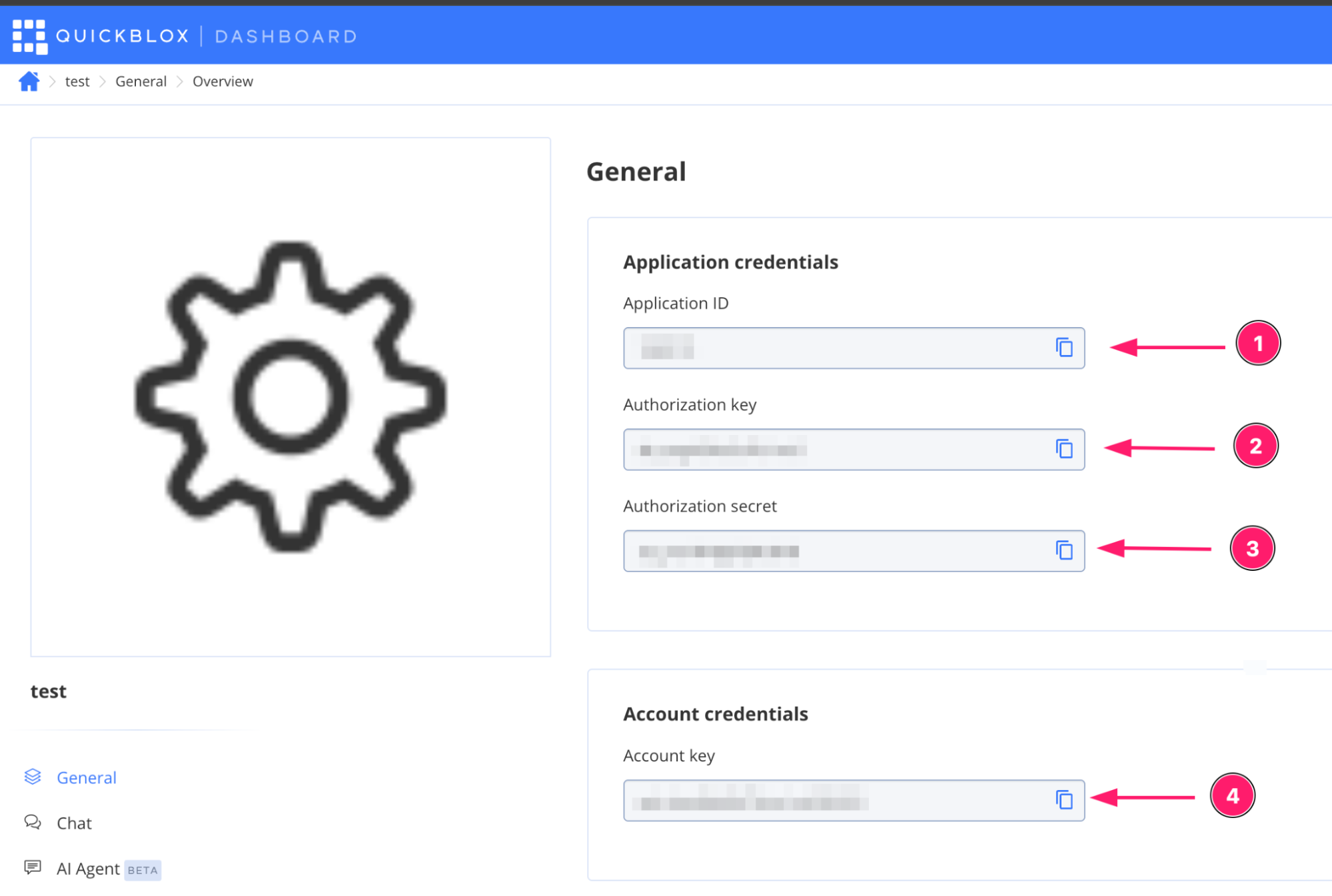
Make sure the credentials correspond to the QuickBlox application you created in Step 1.
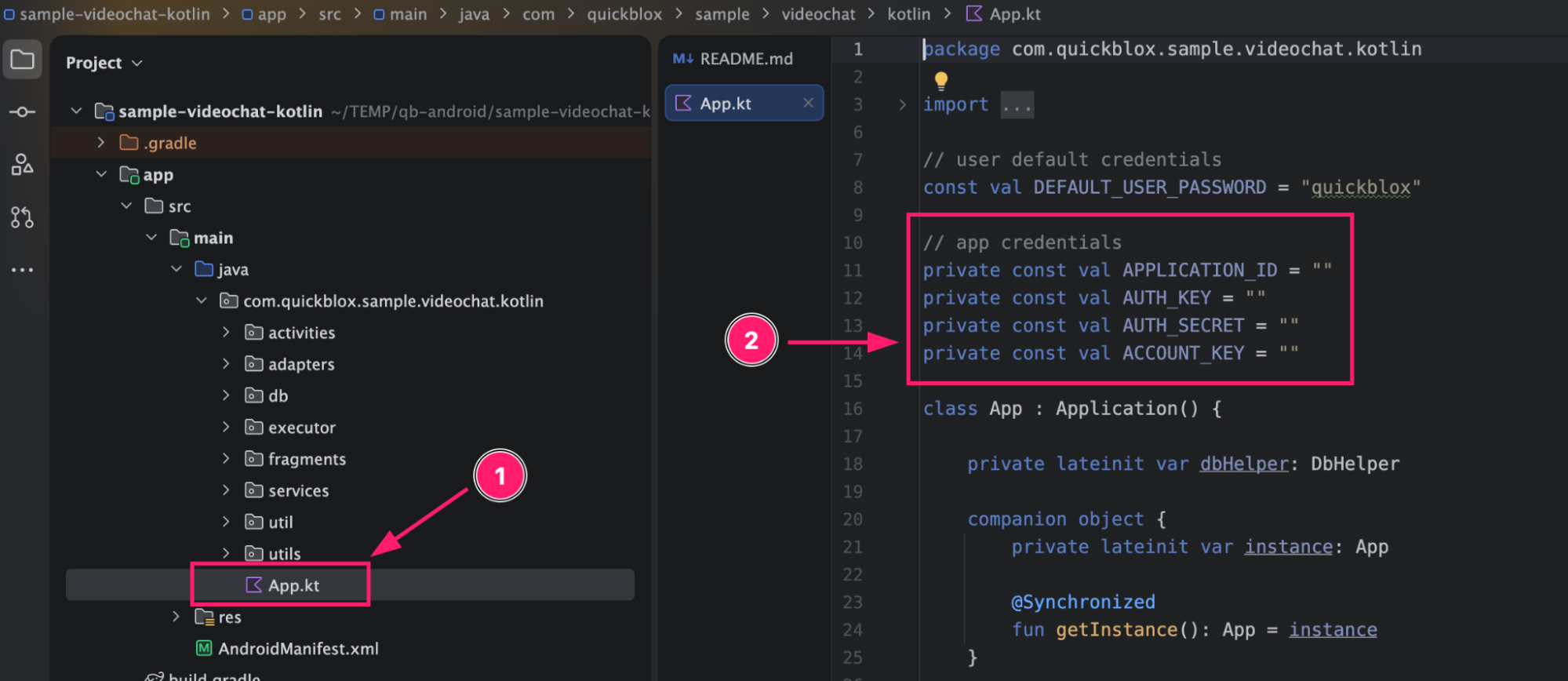
Configure Video Conferencing Samples
For conference samples, you’ll also need to configure the required SERVER_URL.
Configure Firebase Push Notifications (Optional)
If you want to use push notifications with the Android sample, you’ll need to configure Firebase Cloud Messaging (FCM).
If you don’t already have a Firebase project, create one and configure it for your Android application.
Add Your Firebase Credentials to QuickBlox
In the original sample setup, the Firebase Cloud Messaging credentials are configured through:
Firebase Console → Project Settings → Cloud Messaging
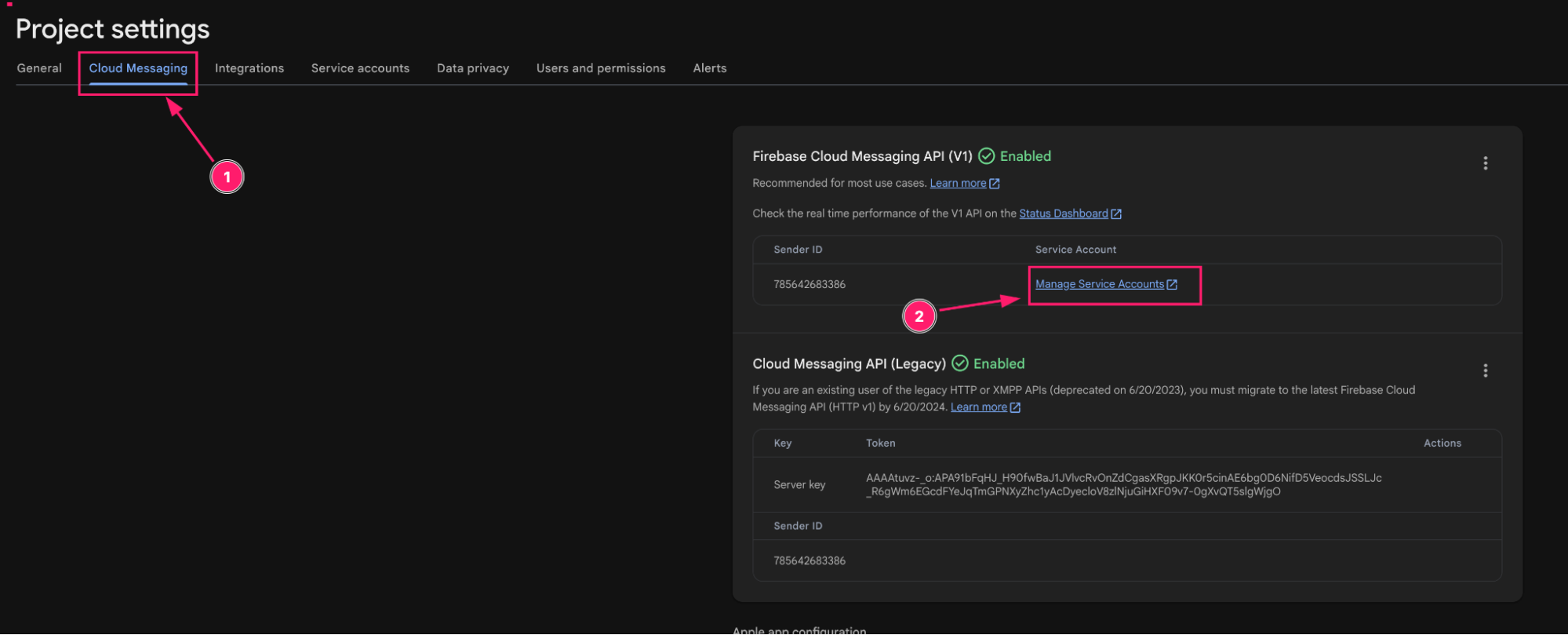
You then add the required Firebase credentials to:
QuickBlox Admin Panel → Your App → Push Notifications → Settings
Select the appropriate environment and save the credentials.
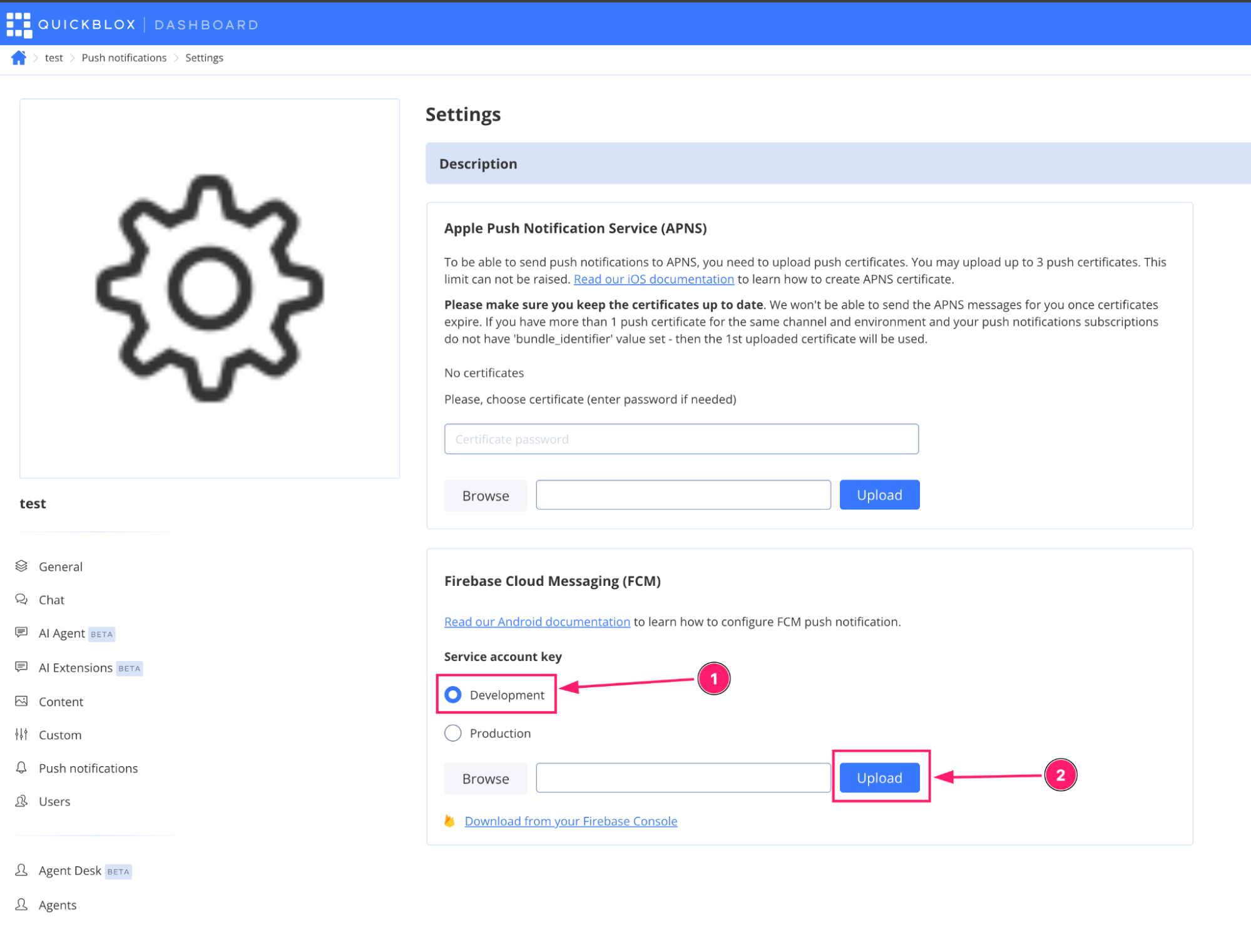
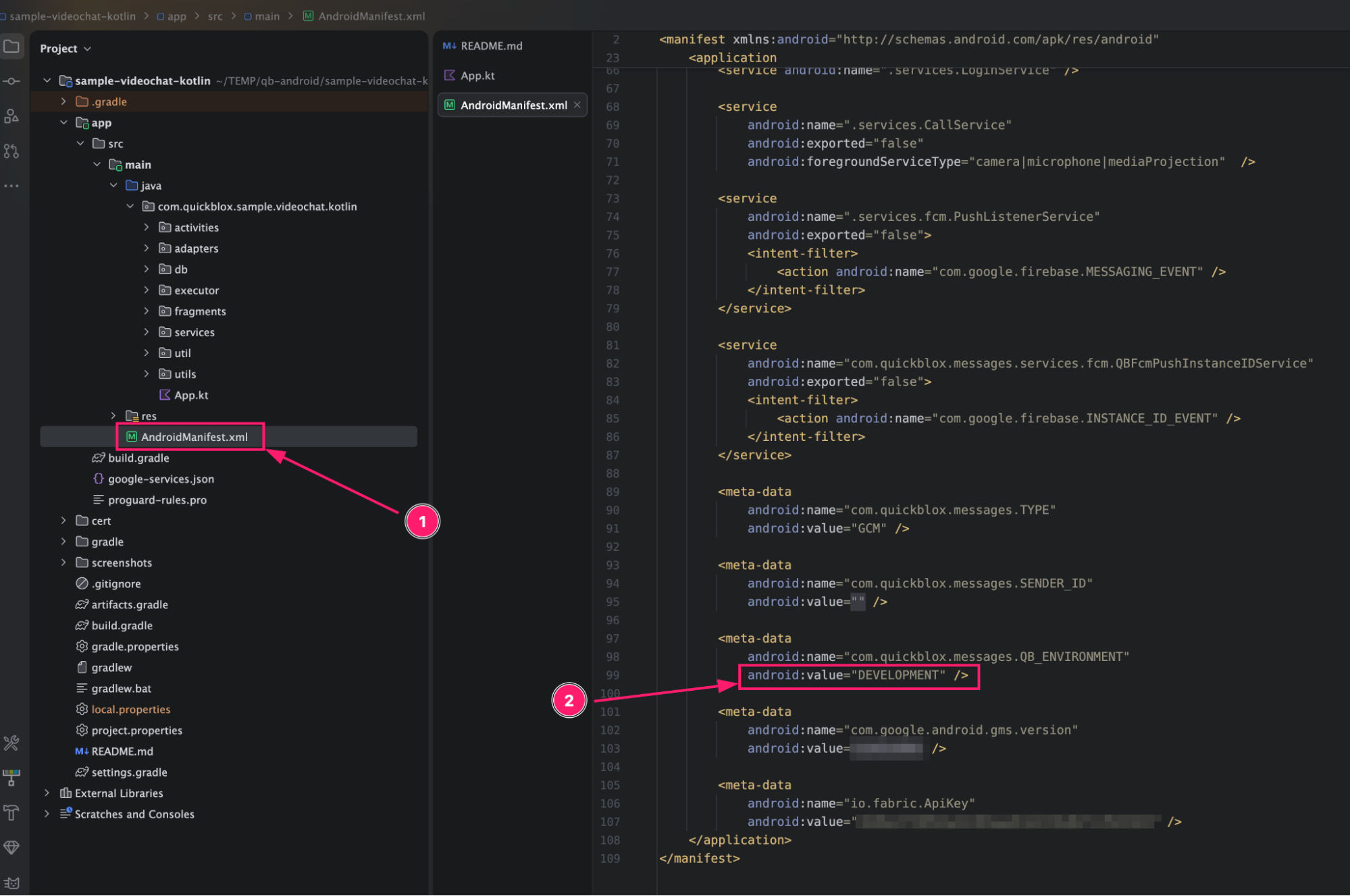
QuickBlox supports DEVELOPMENT and PRODUCTION environments.
The environment configured in the Android sample must correspond to the environment configured in the QuickBlox Admin Panel.
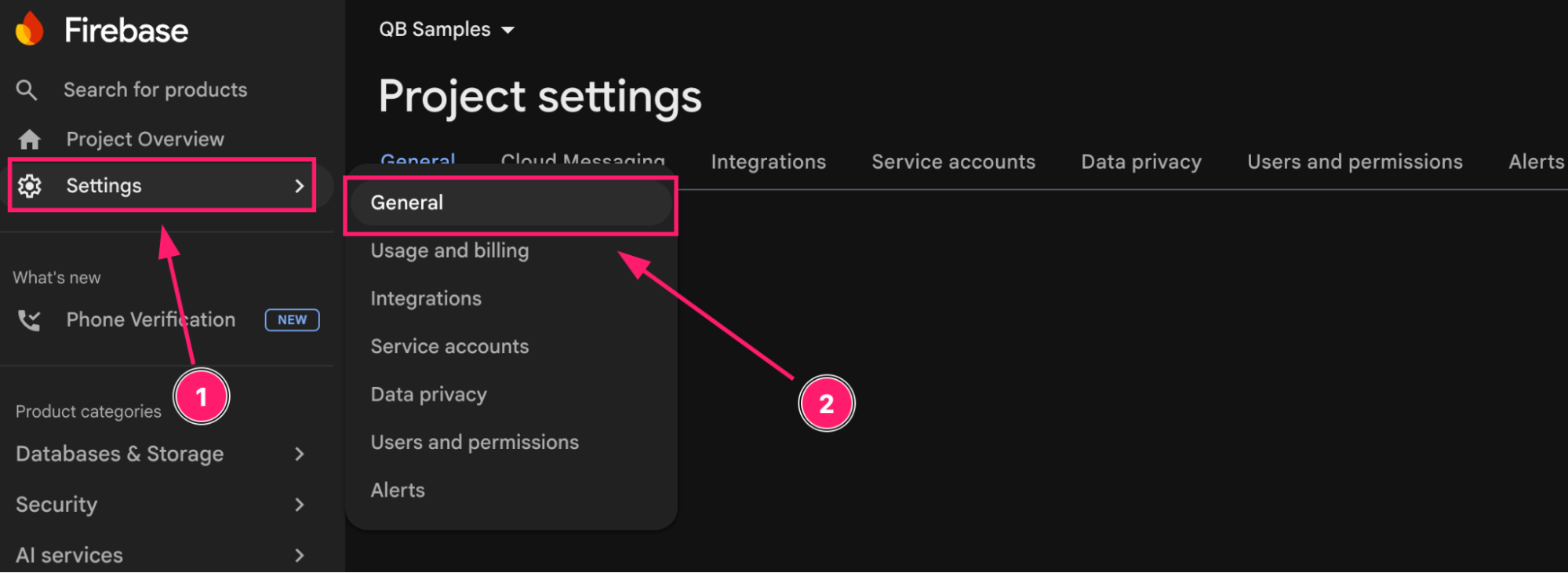
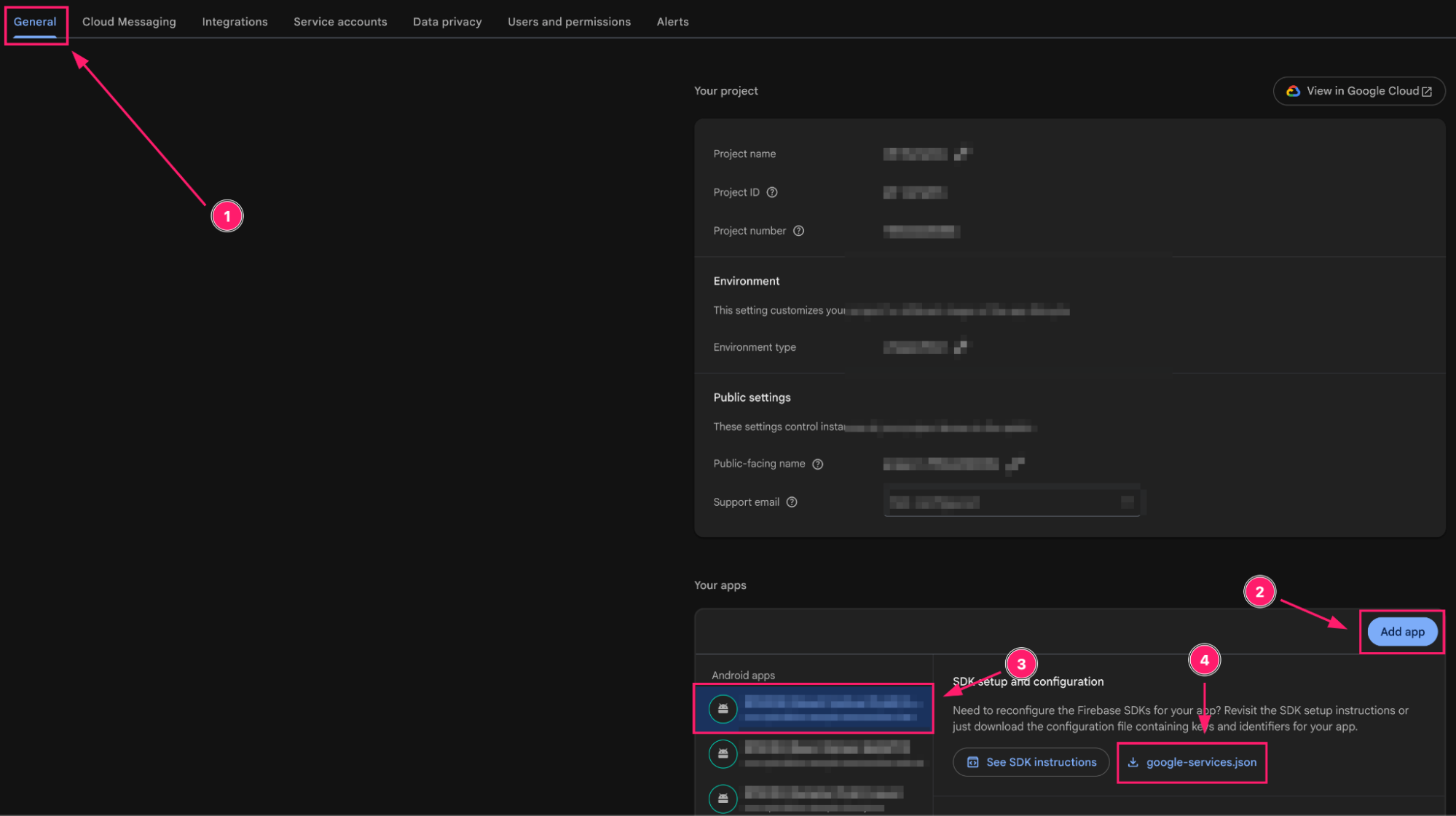
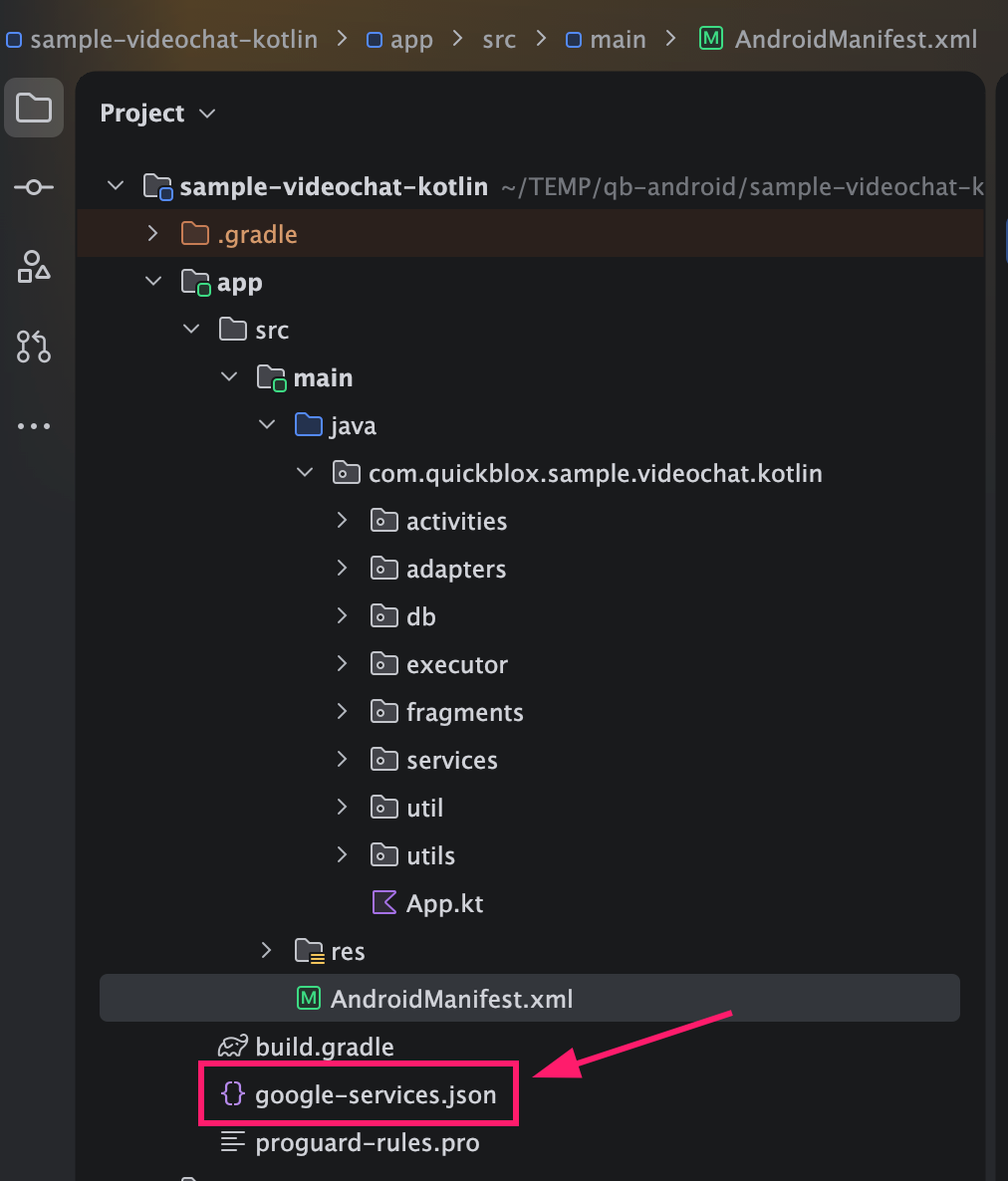
Add google-services.json
Download the google-services.json file from:
Firebase Console → Project Settings → General
Add or replace the file in the appropriate app folder of the Android sample.
Configure the Sender ID
The original sample setup also requires the Firebase Sender ID, available through:
Firebase Console → Project Settings → Cloud Messaging
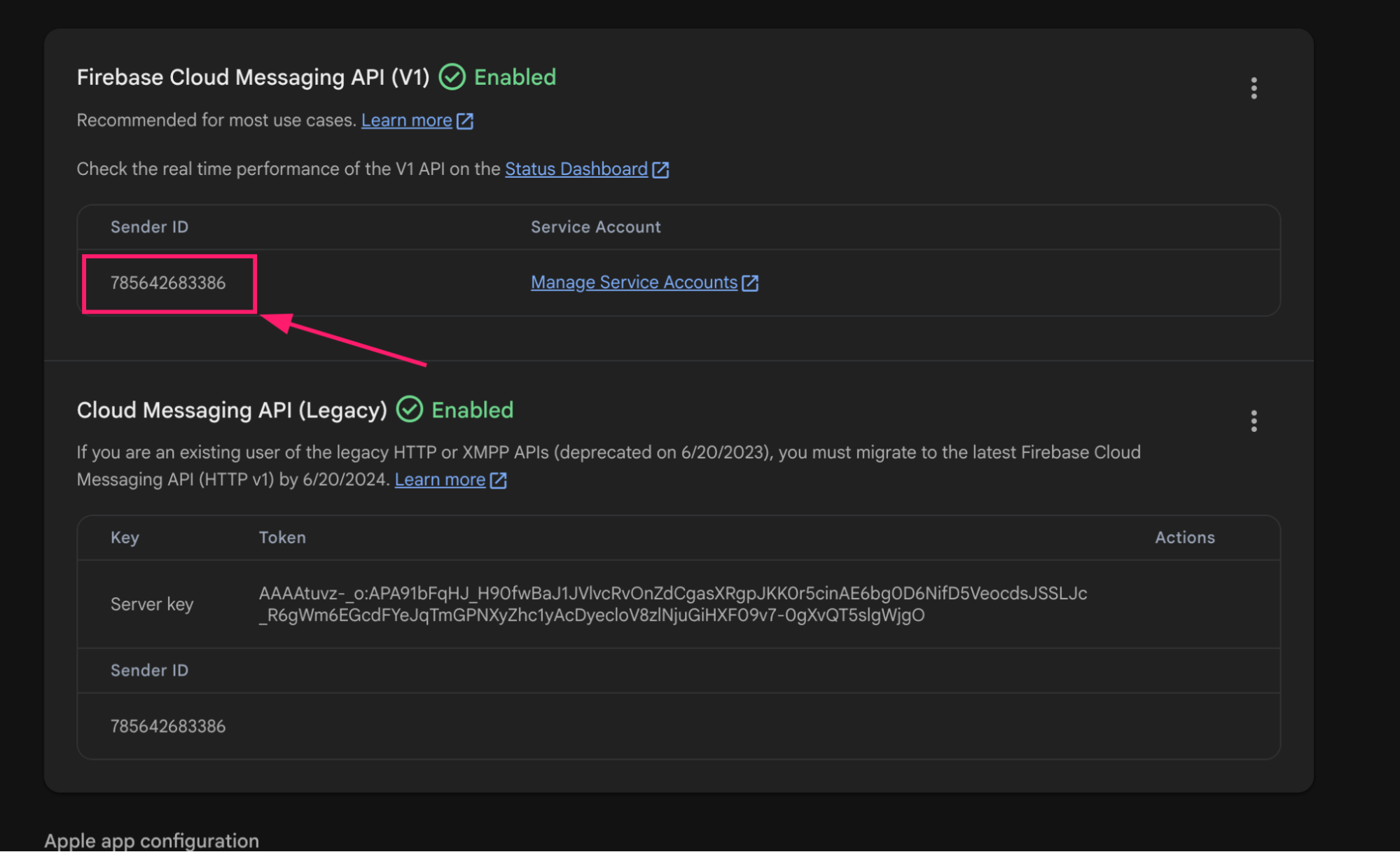
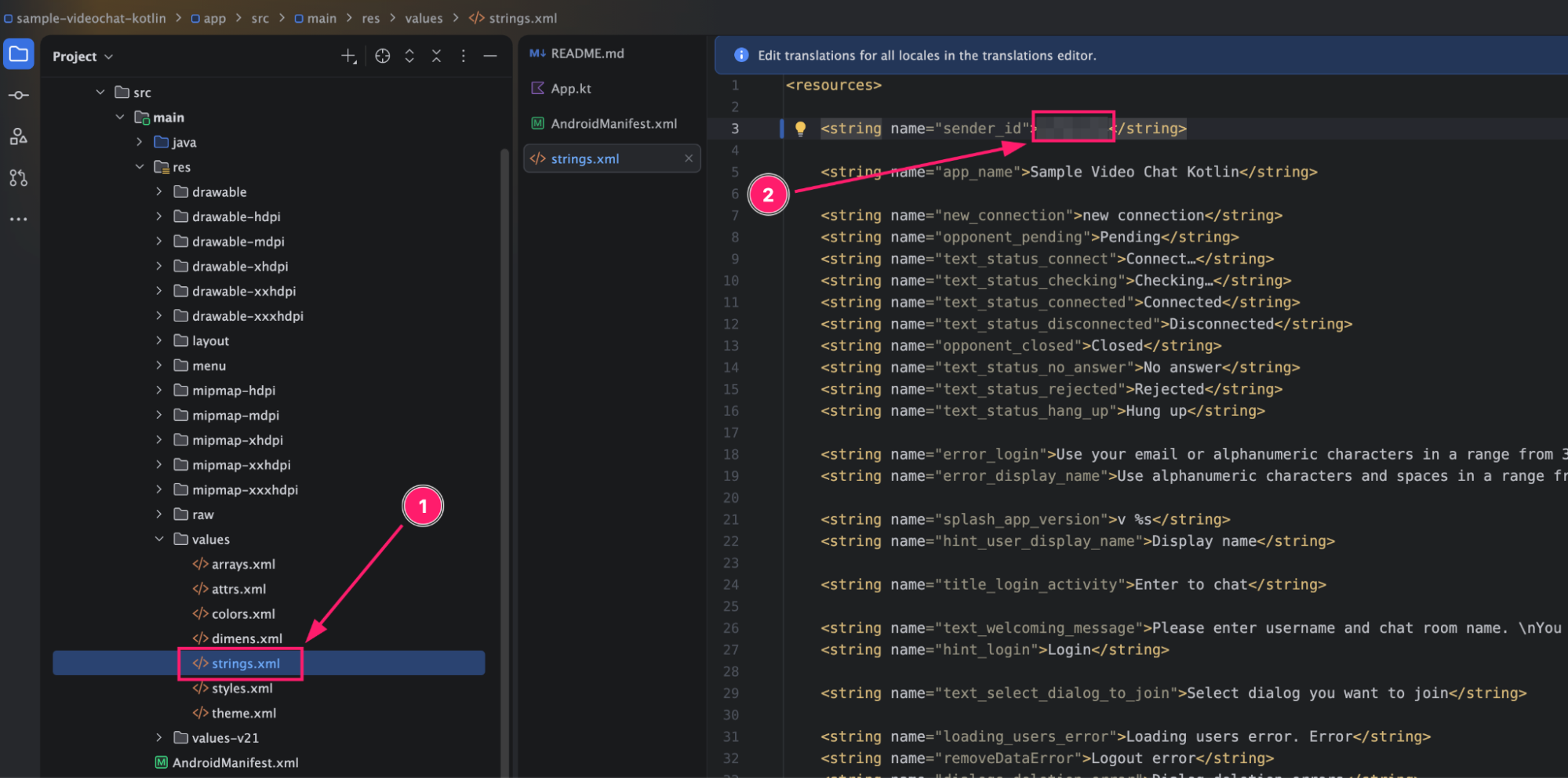
Add the Sender ID to the appropriate configuration in the Android sample.
In the original sample, this value is added to the strings.xml file using the sender_id string.
Run the Android Sample
Once you’ve configured the required QuickBlox credentials and any optional Firebase settings, you’re ready to run the sample.
Launch an Android emulator or connect a physical Android device.
Select your target device from the list of available devices in Android Studio, then select Run.
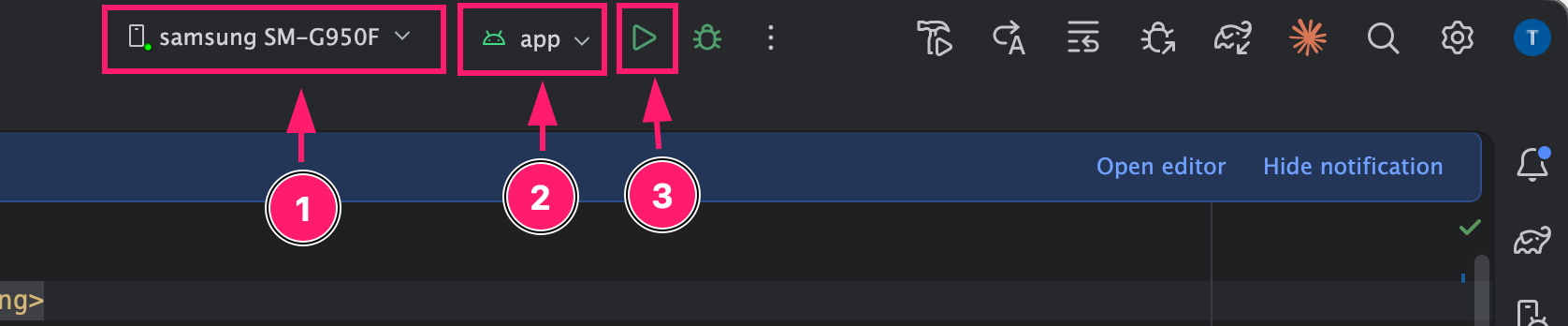
Once the application builds and launches successfully, you can begin testing the chat or video functionality included in your selected sample.
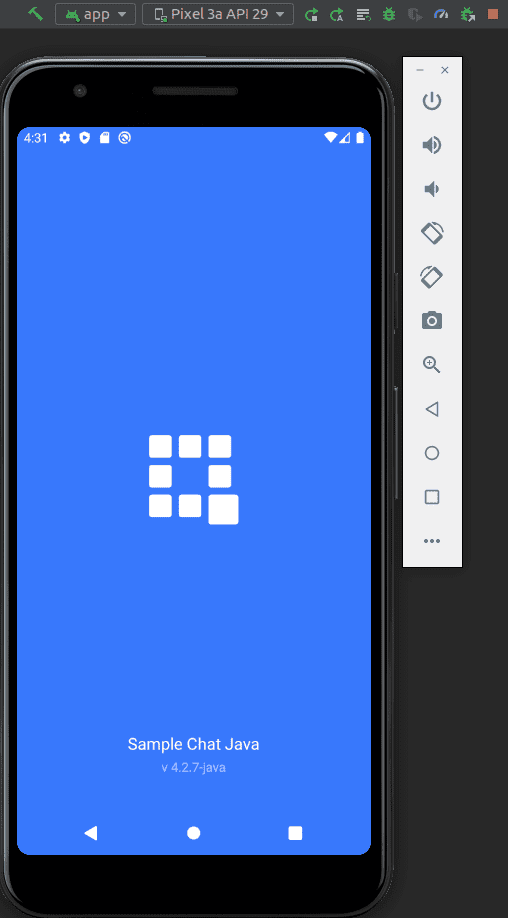
You now have a working QuickBlox Android sample running with your own application configuration.
Video Calling Notes: QuickBlox Android samples include WebRTC-based video communication functionality. Some conferencing features may depend on your QuickBlox plan or require additional configuration. Check the current QuickBlox documentation and plan details before implementing these features in production.
Next Steps
Now that you’ve successfully run a QuickBlox Android sample, use these resources to explore the SDK in more detail and start building your own implementation.
Reference material for working with the Android SDK:
- QuickBlox Android SDK documentation — https://docs.quickblox.com/sdks/android-quick-start
- QuickBlox Android SDK and code samples on GitHub — https://github.com/QuickBlox/quickblox-android-sdk
- QuickBlox Developer Discord Community — https://discord.com/invite/3cKRunq8ZZ
- QuickBlox Support — https://help.quickblox.com/
Frequently Asked Questions
Is the QuickBlox Android SDK free to use?
Yes. The QuickBlox Android SDK and sample apps are free to download and use for development. Some features and production usage may require a paid QuickBlox plan, depending on your implementation and requirements.
Does the QuickBlox Android SDK support both Java and Kotlin?
Yes. The QuickBlox Android SDK can be used to build Android applications with both Java and Kotlin.
Do I need Firebase to run a QuickBlox Android chat sample?
No. Firebase is not required for core chat functionality. You only need to configure Firebase Cloud Messaging (FCM) if you want to enable and test push notifications in the Android sample.