
Video Calling
Learn how to add peer-to-peer video calls to your app.
QuickBlox Video Calling API is built on top of WebRTC. It allows adding real-time video communication features into your app similar to Skype using API easily. The communication is happening between peers representing camera devices. There are two peer types:
- Local peer is a device running the app right now.
- Remote peer is an opponent device.
Establishing real-time video communication between two peers involves 3 phases:
- Signaling. At this phase, the peers’ local IPs and ports where they can be reached (ICE candidates) are exchanged as well as their media capabilities and session control messages.
- Discovery. At this phase, the public IPs and ports at which endpoints can be reached are discovered by STUN/TURN server.
- Establishing a connection. At this phase, the data are sent directly to each party of the communication process.
In order to start using Video Calling Module, you need to connect to QuickBlox Chat first. The signaling in the QuickBox WebRTC module is implemented over the XMPP protocol using QuickBlox Chat Module. So QuickBlox Chat Module is used as a signaling transport for Video Calling API.
Please use this WebRTC Video Calling to make the Group Calls with 4 or fewer users. Because of Mesh architecture we use for multi-point where every participant sends and receives its media to all other participants, the current solution supports group calls with up to 4 people.
Visit our Key Concepts page to get an overall understanding of the most important QuickBlox concepts.
Before you begin
- Register a QuickBlox account. This is a matter of a few minutes and you will be able to use this account to build your apps.
- Configure QuickBlox SDK for your app. Check out our Setup page for more details.
- Create a user session to be able to use QuickBlox functionality. See our Authentication page to learn how to do it.
- Connect to the Chat server to provide a signaling mechanism for Video Calling API. Follow our Chat page to learn about chat connection settings and configuration.
Initialize WebRTC
Before any interaction with QuickbloxWebRTC, you need to initialize it using the method below.
QBRTCClient.initializeRTC()
[QBRTCClient initializeRTC];
Logging
Logging is a powerful tool to see the exact flow of the QuickbloxWebRTC framework and analyze its decisions. By enabling logs you will be able to debug most issues, or perhaps help us analyze your problems. Check Enable logging section to learn how to enable logging.
Background mode
You can use our SDK in the background mode as well, however, this requires you to add a specific app permissions. Under the app build settings, open the Capabilities tab. In this tab, turn on Background Modes and set the Audio, AirPlay and Picture in Picture checkbox to set the audio background mode.

If everything is correctly configured, iOS provides an indicator that your app is running in the background with an active audio session. This is seen as a red background of the status bar, as well as an additional bar indicating the name of the app holding the active audio session, in this case - your app.
Manage calls
In order to operate and receive calls you need to setup a client delegate. Your class must conform to the QBRTCClientDelegate protocol. Use the method below to subscribe. Learn more details about the event delegate configuration in the Event delegate section.
QBRTCClient.instance().add(self)
[QBRTCClient.instance addDelegate:self];
Initiate a call
To call other users, use QBRTCClient and QBRTCSession methods below.
// 2123, 2123, 3122 - opponent's
let opponentsIDs = [3245, 2123, 3122]
let newSession = QBRTCClient.instance().createNewSession(withOpponents: ids! as [NSNumber], with: .video)
// userInfo - the custom user information dictionary for the call. May be nil.
let userInfo = ["key":"value"] // optional
newSession.startCall(userInfo)
// 2123, 2123, 3122 - opponent's
NSArray *opponentsIDs = @[@3245, @2123, @3122];
QBRTCSession *newSession = [QBRTCClient.instance createNewSessionWithOpponents:opponentsIDs withConferenceType:QBRTCConferenceTypeVideo];
// userInfo - the custom user information dictionary for the call. May be nil.
NSDictionary *userInfo = @{ @"key" : @"value" }; // optional
[newSession startCall:userInfo];
After this, your opponents will receive one call request per five seconds for a duration of 45 seconds (you can configure these settings with QBRTCConfig).
func didReceiveNewSession(_ session: QBRTCSession, userInfo: [String : String]? = nil) {
   if self.session != nil {
       // we already have a video/audio call session, so we reject another one
       // userInfo - the custom user information dictionary for the call from caller. May be nil.
       let userInfo = ["key":"value"] // optional
       session.rejectCall(userInfo)
       return
   }
   // saving session instance here
   self.session = session
}
- (void)didReceiveNewSession:(QBRTCSession *)session userInfo:(NSDictionary *)userInfo {
    if (self.session) {
        // we already have a video/audio call session, so we reject another one
        // userInfo - the custom user information dictionary for the call from caller. May be nil.
        NSDictionary *userInfo = @{ @"key" : @"value" }; // optional
        [session rejectCall:userInfo];
        return;
    }
    // saving session instance here
    self.session = session;
}
The self.session refers to the current call session. Each particular audio/video call has a unique sessionID. This allows you to have more than one independent audio/video conference calls. If you want to increase the call timeout, you can increase it up to 60 seconds at maximum.
QBRTCConfig.setAnswerTimeInterval(60)
[QBRTCConfig setAnswerTimeInterval:60];
Note
By default,
setAnswerTimeIntervalvalue is 45 seconds.
In case the opponent did not respond to your call within a specific timeout time, the method listed below will be called.
func session(_ session: QBRTCSession, userDidNotRespond userID: NSNumber) {

}
- (void)session:(QBRTCSession *)session userDidNotRespond:(NSNumber *)userID {

}
Accept a call
In order to accept a call, use the acceptCall() method below.
// userInfo - the custom user information dictionary for the accept call. May be nil.
let userInfo = ["key":"value"] // optional
self.session?.acceptCall(userInfo)
// userInfo - the custom user information dictionary for the accept call. May be nil.
NSDictionary *userInfo = @{ @"key" : @"value" }; // optional
[self.session acceptCall:userInfo];
After this your opponent will receive an accept signal:
func session(_ session: QBRTCSession, acceptedByUser userID: NSNumber, userInfo: [String : String]? = nil) {

}
- (void)session:(QBRTCSession *)session acceptedByUser:(NSNumber *)userID userInfo:(NSDictionary *)userInfo {

}
Reject a call
In order to reject a call, use the rejectCall() method below.
// userInfo - the custom user information dictionary for the reject call. May be nil.
let userInfo = ["key":"value"] // optional
self.session?.rejectCall(userInfo)

// and release session instance
self.session = nil
// userInfo - the custom user information dictionary for the reject call. May be nil.
NSDictionary *userInfo = @{ @"key" : @"value" }; // optional
[self.session rejectCall:userInfo];

// and release session instance
self.session = nil;
After this, your opponent will receive a reject signal.
func session(_ session: QBRTCSession, rejectedByUser userID: NSNumber, userInfo: [String : String]? = nil) {
    print("Rejected by user \(userID)")
}
- (void)session:(QBRTCSession *)session rejectedByUser:(NSNumber *)userID userInfo:(NSDictionary *)userInfo  {
    NSLog(@"Rejected by user %@", userID);
}
End a call
To end a call, use the hangUp() method below.
// userInfo - the custom user information dictionary for the reject call. May be nil.
let userInfo = ["key":"value"] // optional
self.session?.hangUp(userInfo)

// and release session instance
self.session = nil
// userInfo - the custom user information dictionary for the reject call. May be nil.
NSDictionary *userInfo = @{ @"key" : @"value" }; // optional
[self.session hangUp:userInfo];

// and release session instance
self.session = nil;
After this, your opponent will receive a hangup signal.
func session(_ session: QBRTCSession, hungUpByUser userID: NSNumber, userInfo: [String : String]? = nil) {

}
- (void)session:(QBRTCSession *)session hungUpByUser:(NSNumber *)userID userInfo:(NSDictionary<NSString *,NSString *> *)userInfo {

}
Local video view
To show your local video track from a camera, you should create UIView on the storyboard and then use the following code.
// your view controller interface code

import Foundation

class CallController: UIViewController, QBRTCClientDelegate {

    @IBOutlet weak var localVideoView : UIView! // your video view to render local camera video stream

    var videoCapture: QBRTCCameraCapture?
    var session: QBRTCSession?

    override func viewDidLoad() {
        QBRTCClient.instance().add(self as QBRTCClientDelegate)

        let videoFormat = QBRTCVideoFormat()
        videoFormat.frameRate = 30
        videoFormat.pixelFormat = .format420f
        videoFormat.width = 640
        videoFormat.height = 480

        // QBRTCCameraCapture class used to capture frames using AVFoundation APIs
        self.videoCapture = QBRTCCameraCapture(videoFormat: videoFormat, position: .front)

        // add video capture to session's local media stream
        self.session?.localMediaStream.videoTrack.videoCapture = self.videoCapture

        self.videoCapture?.previewLayer.frame = self.localVideoView.bounds
        self.videoCapture?.startSession()

        self.localVideoView.layer.insertSublayer(self.videoCapture!.previewLayer, atIndex: 0)

        // start call
    }
    //...
}
// your view controller interface code

@interface CallController()<QBRTCClientDelegate>
@property (weak, nonatomic) IBOutlet UIView *localVideoView; // your video view to render local camera video stream
@property (strong, nonatomic) QBRTCCameraCapture *videoCapture;
@property (strong, nonatomic) QBRTCSession *session;
@end

@implementation CallController

- (void)viewDidLoad {
    [super viewDidLoad];
    [[QBRTCClient instance] addDelegate:self];

    QBRTCVideoFormat *videoFormat = [[QBRTCVideoFormat alloc] init];
    videoFormat.frameRate = 30;
    videoFormat.pixelFormat = QBRTCPixelFormat420f;
    videoFormat.width = 640;
    videoFormat.height = 480;

    // QBRTCCameraCapture class used to capture frames using AVFoundation APIs
    self.videoCapture = [[QBRTCCameraCapture alloc] initWithVideoFormat:videoFormat position:AVCaptureDevicePositionFront]; // or AVCaptureDevicePositionBack

    // add video capture to session's local media stream
    self.session.localMediaStream.videoTrack.videoCapture = self.videoCapture;
    self.videoCapture.previewLayer.frame = self.localVideoView.bounds;
    [self.videoCapture startSession];

    [self.localVideoView.layer insertSublayer:self.videoCapture.previewLayer atIndex:0];
    // start call
}
// ...
Remote video view
To show video views with streams that you have received from your opponents, you should create QBRTCRemoteVideoView views on the storyboard and then use the following code.
func session(_ session: QBRTCBaseSession, receivedRemoteVideoTrack videoTrack: QBRTCVideoTrack, fromUser userID: NSNumber) {
    // we suppose you have created UIView and set it's class to RemoteVideoView class
    // also we suggest you to set view mode to UIViewContentModeScaleAspectFit or
    // UIViewContentModeScaleAspectFill
    self.opponentVideoView.setVideoTrack(videoTrack)
}
- (void)session:(QBRTCBaseSession *)session receivedRemoteVideoTrack:(QBRTCVideoTrack *)videoTrack fromUser:(NSNumber *)userID {
    // we suppose you have created UIView and set it's class to QBCallRemoteVideoView class
    // also we suggest you to set view mode to UIViewContentModeScaleAspectFit or
    // UIViewContentModeScaleAspectFill
    [self.opponentVideoView setVideoTrack:videoTrack];
}
You can always get remote video tracks for a specific user ID in the call using the below-specified QBCallSession methods (assuming that they are existent).
let remoteVideoTrack = self.session?.remoteVideoTrack(withUserID: 24450) // video track for user 24450
QBRTCVideoTrack *remoteVideoTrack = [self.session remoteVideoTrackWithUserID:@(24450)]; // video track for user 24450
Event delegate
To process events such as incoming call, call reject, hang up, etc. you need to set up the event listener. The event listener processes various events that happen with the call session or peer connection in your app.
Using the callbacks provided by the event delegate, you can implement and execute the event-related processing code. For example, the session(_:acceptedByUser:userInfo:) method of the QBRTCClientDelegate is called when your call has been accepted by the user. This callback receives information about the call session, user ID who accepted the call and additional key-value data about the user.
QuickBlox iOS SDK persistently interacts with the server via XMPP connection that works as a signaling transport for establishing a call between two or more peers. It receives the callbacks of the asynchronous events which happen with the call and peer connection. This allows you to track these events and build your own video calling features around them.
To track call session events, you should use QBRTCSessionEventsCallback listener. The supported event callbacks for a call session and peer connection are listed in the table below.
| Method | Invoked when |
|---|---|
| didReceiveNewSession(_:userInfo:) | A new call session has been received. |
| session(_:acceptedByUser:userInfo:) | A call session has been accepted. |
| session(_:rejectedByUser:userInfo:) | A call session has been rejected. |
| session(_:hungUpByUser:userInfo:) | An accepted call has been ended by the peer by pressing the hang-up button. |
| session(_:userDidNotRespond:) | A remote peer did not respond to your call within the timeout period. |
| session(_:sessionDidClose:) | A call session has been closed. |
| session(_:updatedStatsReport:forUserID:) | An updated stats report, which is called by timeout, has been received for the user ID. |
| session(_:didChangeState:) | A call session state has been changed in real-time. View all available call session states in the Call session states section. |
| session(_:receivedRemoteAudioTrack:fromUser:) | A remote audio track has been received from the peer. |
| session(_: receivedRemoteVideoTrack:fromUser:) | A remote video track has been received from the peer. |
| session(_:startedConnectingToUser:) | A peer connection has been initiated. |
| session(_:connectedToUser:) | A peer connection has been established. |
| session(_:connectionFailedForUser:) | A peer connection has failed. |
| session(_:disconnectedFromUser:) | A connection was terminated. |
| session(_:didChange:forUser:) | A peer connection state has been changed. View all available peer connection states in the Peer connection states section. |
| session(_:connectionClosedForUser:) | A peer connection has been closed. |
| session(_:didChangeRconnectionState:forUser:) | A call reconnection state has been changed in real-time. View all available call reconnection states in the Call reconnection states section. |
The following code lists all supported event callbacks for the call session and peer connection along with their parameters as well as shows how to add the listener.
//CallViewController.swift

class CallViewController: UIViewController {

    //MARK: - Life Cycle
    override func viewDidLoad() {
        super.viewDidLoad()

        QBRTCClient.instance().add(self as QBRTCClientDelegate)
    }

    extension CallViewController: QBRTCClientDelegate {
        // MARK: QBRTCClientDelegate
        func didReceiveNewSession(_ session: QBRTCSession, userInfo: [String : String]? = nil) {
        }

        func session(_ session: QBRTCSession, userDidNotRespond userID: NSNumber) {
        }

        func session(_ session: QBRTCSession, rejectedByUser userID: NSNumber, userInfo: [String : String]? = nil) {
        }

        func session(_ session: QBRTCSession, acceptedByUser userID: NSNumber, userInfo: [String : String]? = nil) {
        }

        func session(_ session: QBRTCSession, hungUpByUser userID: NSNumber, userInfo: [String : String]? = nil) {
        }

        func sessionDidClose(_ session: QBRTCSession) {
        }

        // MARK: QBRTCBaseClientDelegate
        func session(_ session: QBRTCBaseSession, didChange state: QBRTCSessionState) {
        }

        func session(_ session: QBRTCBaseSession, updatedStatsReport report: QBRTCStatsReport, forUserID userID: NSNumber) {
        }

        func session(_ session: QBRTCBaseSession, receivedRemoteAudioTrack audioTrack: QBRTCAudioTrack, fromUser userID: NSNumber) {
        }

        func session(_ session: QBRTCBaseSession, receivedRemoteVideoTrack videoTrack: QBRTCVideoTrack, fromUser userID: NSNumber) {
        }

        func session(_ session: QBRTCBaseSession, connectionClosedForUser userID: NSNumber) {
        }

        func session(_ session: QBRTCBaseSession, startedConnectingToUser userID: NSNumber) {
        }

        func session(_ session: QBRTCBaseSession, connectedToUser userID: NSNumber) {
        }

        func session(_ session: QBRTCBaseSession, disconnectedFromUser userID: NSNumber) {
        }

        func session(_ session: QBRTCBaseSession, connectionFailedForUser userID: NSNumber) {
        }

        func session(_ session: QBRTCBaseSession, didChange state: QBRTCConnectionState, forUser userID: NSNumber) {
        }

        func session(_ session: QBRTCBaseSession, didChangeRconnectionState state: QBRTCReconnectionState, forUser userID: NSNumber) {
    	}
    }
// CallViewController.m
@interface CallViewController: UIViewController<QBRTCClientDelegate>

@end

@implementation CallViewController

// MARK: - Life cycle
- (void)viewDidLoad {
    [super viewDidLoad];

    [[QBRTCClient instance] addDelegate:self];
}

// MARK: - QBRTCClientDelegate
- (void)didReceiveNewSession:(QBRTCSession *)session userInfo:(NSDictionary *)userInfo {
}

- (void)session:(QBRTCSession *)session userDidNotRespond:(NSNumber *)userID {
}

- (void)session:(QBRTCSession *)session rejectedByUser:(NSNumber *)userID userInfo:(nullable NSDictionary <NSString *, NSString *> *)userInfo {
}

- (void)session:(QBRTCSession *)session acceptedByUser:(NSNumber *)userID userInfo:(nullable NSDictionary <NSString *, NSString *> *)userInfo {
}

- (void)session:(QBRTCSession *)session hungUpByUser:(NSNumber *)userID userInfo:(NSDictionary<NSString *,NSString *> *)userInfo {
}

- (void)sessionDidClose:(QBRTCSession *)session {
}

// MARK: - QBRTCBaseClientDelegate
- (void)session:(__kindof QBRTCBaseSession *)session updatedStatsReport:(QBRTCStatsReport *)report forUserID:(NSNumber *)userID {
}

- (void)session:(__kindof QBRTCBaseSession *)session didChangeState:(QBRTCSessionState)state {
}

- (void)session:(__kindof QBRTCBaseSession *)session receivedRemoteAudioTrack:(QBRTCAudioTrack *)audioTrack fromUser:(NSNumber *)userID {
}

- (void)session:(__kindof QBRTCBaseSession *)session receivedRemoteVideoTrack:(QBRTCVideoTrack *)videoTrack fromUser:(NSNumber *)userID {
}

- (void)session:(__kindof QBRTCBaseSession *)session connectionClosedForUser:(NSNumber *)userID {
}

- (void)session:(__kindof QBRTCBaseSession *)session startedConnectingToUser:(NSNumber *)userID {
}

- (void)session:(__kindof QBRTCBaseSession *)session connectedToUser:(NSNumber *)userID {
}

- (void)session:(__kindof QBRTCBaseSession *)session disconnectedFromUser:(NSNumber *)userID {
}

- (void)session:(__kindof QBRTCBaseSession *)session connectionFailedForUser:(NSNumber *)userID {
}

- (void)session:(__kindof QBRTCBaseSession *)session didChangeConnectionState:(QBRTCConnectionState)state forUser:(nonnull NSNumber *)userID {
}

- (void)session:(__kindof QBRTCBaseSession *)session didChangeRconnectionState:(QBRTCReconnectionState)state forUser:(NSNumber *)userID {
}
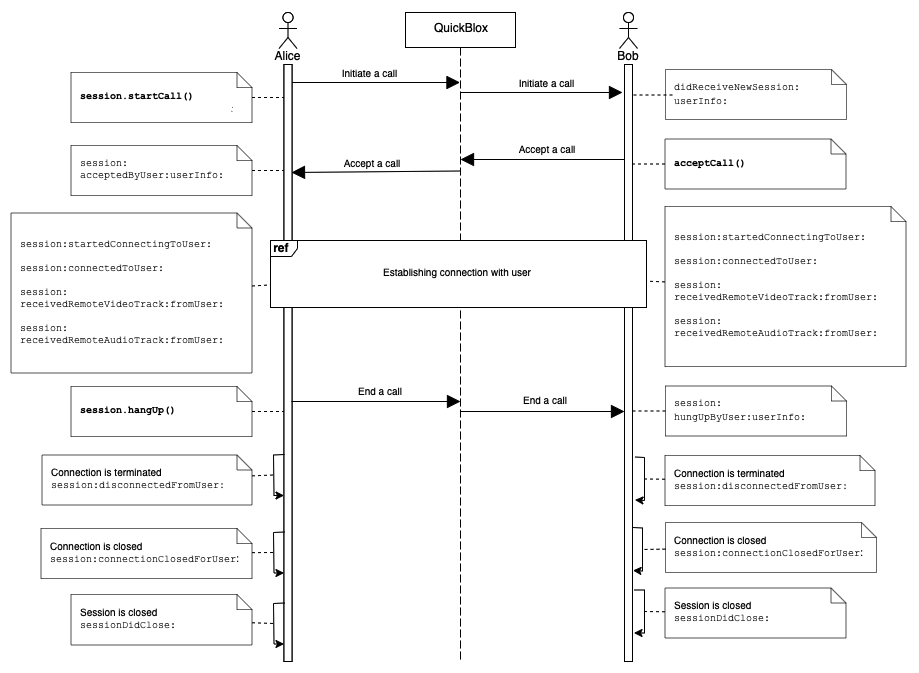
Go to the Resources section to see a sequence diagram for a regular call workflow.
Call session states
Each call session has its own state. You can always access the current state by simply using the QBRTCSession property.
let sessionState = self.session.state
QBRTCSessionState sessionState = self.session.state;
You can also receive a live-time call session state.
func session(_ session: QBRTCBaseSession, didChange state: QBRTCConnectionState) {

}
- (void)session:(QBRTCBaseSession *)session didChangeState:(QBRTCConnectionState)state {

}
The following table lists all supported call session states:
| State | Description |
|---|---|
| QBRTCSessionStateNew | A call session was successfully created and ready for the next step. |
| QBRTCSessionStatePending | A call session is in a pending state for other actions to occur. |
| QBRTCSessionStateConnecting | A call session is in the progress of establishing a connection. |
| QBRTCSessionStateConnected | A call session was successfully established. |
| QBRTCSessionStateClosed | A call session has been closed. |
Call reconnection states
Note
Since version 2.8.0 Quickblox-WebRTC SDK supports reconnection functional.
You can receive a live-time call reconnection state.
func session(_ session: QBRTCBaseSession, didChangeRconnectionState state: QBRTCReconnectionState, forUser userID: NSNumber) {

}
- (void)session:(__kindof QBRTCBaseSession *)session didChangeRconnectionState:(QBRTCReconnectionState)state forUser:(NSNumber *)userID {

}
Doesn’t invoke in conference.
The following table lists all supported call reconnection states:
| State | Description |
|---|---|
| QBRTCReconnectionStateReconnecting | A connection with opponent in reconnection progress after ICE connection failed. |
| QBRTCReconnectionStateReconnected | A connection with opponent was successfully established. |
| QBRTCReconnectionStateFailed | A connection with opponent isn’t restored by disconnect time interval. |
You can also increase disconnect timeout. By default the time is set to 30 seconds. Minimal time is 10 seconds. It’s time while users can have availability to reconnect.
QBRTCConfig.setDisconnectTimeInterval(20)
[QBRTCConfig setDisconnectTimeInterval:20];
Peer connection states
Each peer connection has its own state. By default, you can access that state by calling this method from QBRTCSession.
let userID = 20450 as NSNumber // user with ID 20450
let connectionState = self.session.connectionState(forUser: userID)
NSNumber *userID = @(20450); // user with ID 20450
QBRTCConnectionState connectionState = [self.session connectionStateForUser:userID];
You can also receive a real-time connection state.
func session(_ session: QBRTCSession, didChange state: QBRTCConnectionState, forUser userID: NSNumber) {

}
- (void)session:(QBRTCSession *)session didChangeConnectionState:(QBRTCConnectionState)state forUser:(NSNumber *)userID {

}
The following table lists all supported peer connection states:
| State | Description |
|---|---|
| QBRTCConnectionUnknown | A connection state is unknown; this can occur when none of the other states are fit for the current situation. |
| QBRTCConnectionStateNew | A peer connection has been created and hasn't done any networking yet. |
| QBRTCConnectionStatePending | A connection is in a pending state for other actions to occur. |
| QBRTCConnectionStateConnecting | One or more of the ICE transports are currently in the process of establishing a connection. |
| QBRTCConnectionStateChecking | The ICE agent has been given one or more remote candidates and is checking pairs of local and remote candidates against one another to try to find a compatible match, but has not yet found a pair which will allow the peer connection to be made. It is possible that gathering of candidates is also still underway. |
| QBRTCConnectionStateConnected | A usable pairing of local and remote candidates has been found for all components of the connection, and the connection has been established. |
| QBRTCConnectionStateDisconnected | A peer has been disconnected from the call session. But the call session is still open and the peer can be reconnected to the session. |
| QBRTCConnectionStateDisconnectTimeout | The peer connection was disconnected by the timeout. |
| QBRTCConnectionStateClosed | A peer connection was closed. But the call session can still be open because there can several peer connections in a single call session. The ICE agent for this peer connection has shut down and is no longer handling requests. |
| QBRTCConnectionStateCount | The ICE connection reached max numbers. |
| QBRTCConnectionStateNoAnswer | The connection did not receive an answer from the remote peer. |
| QBRTCConnectionStateRejected | The connection was rejected by the remote peer. |
| QBRTCConnectionStateHangUp | The connection was hung up by the remote peer. |
| QBRTCConnectionStateFailed | One or more of the ICE transports on the connection is in the failed state. This can occur in different circumstances, for example, bad network, etc. |
Resources
A regular call workflow.
Updated over 1 year ago